
B2Me's search is a simple and powerful way to find what you're looking for on the platform. Searching for a community or provider is a simple 2 step process that is explained below.
Searching for Providers, Communities and Users
Searching for a provider
1) To begin searching for a provider on B2Me start by selecting the "Search for a Provider" button below the search bar, this will take you to the provider search page (as seen on the right).
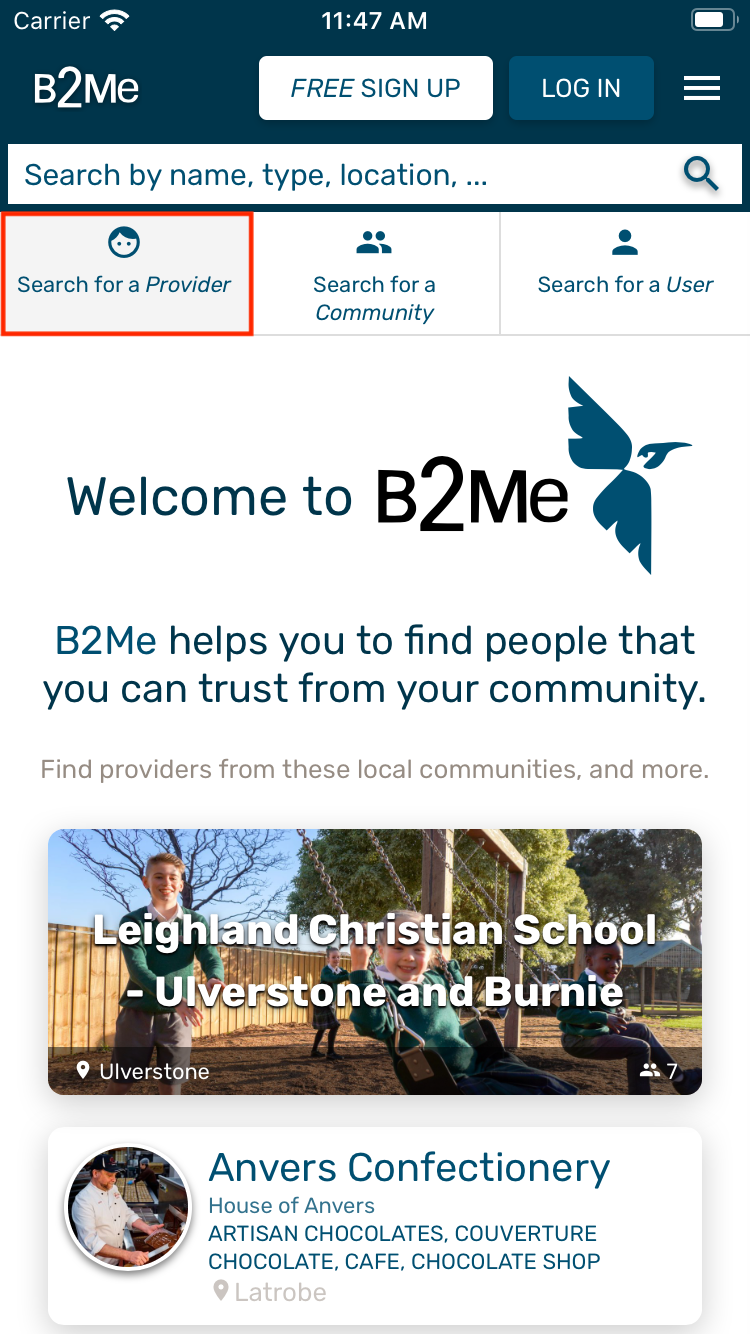

Notice that the "Search for a Provider" button is now highlighted in grey, this means that the search is currently set to search for providers.
2) Tap the search bar to open the keyboard, enter your search query and hit search. You'll then be taken to the results page of that query and your search query will appear in the top search bar.


Not the results you're looking for? Tap the search bar again to refine your search results. Your search term can be as detailed or generic as you want.
Searching for a community
1) To begin searching for a community on B2Me select the "Search for a Community" button under the search bar. This will then take you to the community search page (screenshot on the right).


The "Search for a Community" button is now highlighted in grey, this means that search is currently set to search for communities. To search for a provider, tap the "Search for a Provider" button.
2) Similar to searching for a provider, tap the search bar to open the keyboard, type in your search term and hit "Search". You'll then be taken to the search results page as seen below.


Again just like searching for a provider you are able to refine your search by tapping the search bar at the top of the results page to change your search query.
Searching for a user
1) Following the same process as community and providers, hit the "Search for a User" button under the search bar, enter a search query and view the results.

Searching for Communities and Providers with categories
Don't have a specific search term in mind? Just want to browse B2Me's providers and communities by category?
Selecting one of many search categories allows you to easily view B2Me's selection of communities and providers with ease.
1) Navigate to either the provider or community search pages by selecting the relevant button under the search bar. Below I've selected to search for a provider.
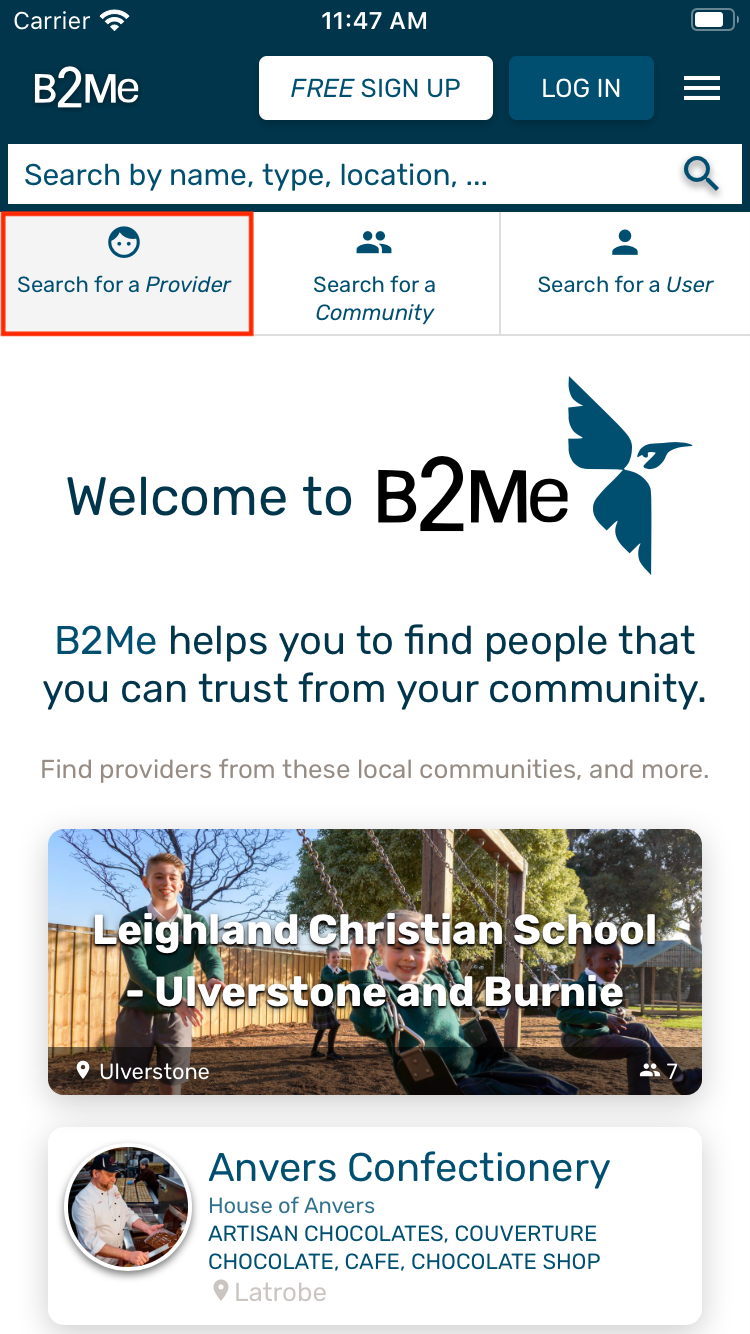

2) The search page provides all the relevant search categories for what you're looking for right under the search bar. Scroll down on your device to view them all. Categories are sorted alphabetically for ease of use.


3) Tapping on a search category will take you to a results page, providing communities or providers within that category.


Refining your searches with filters
Search results can often return many results which might not help you when finding what you're looking for. B2Me has powerful filtering functionality that allows you to refine your search even further.
1) On the search results page select the "filter" icon (depicted below) to open the filtering pane.

2) The filtering pane will slide out from the left side of the screen and present multiple filtering options. Check the box next to the desired filter to apply it. You can select multiple filters if required.


Selecting a filter will close the filter pane to reveal the filtered search results, just tap the filter icon again to open the filter pane to your adjust the applied filters if required.
Comments
0 comments
Article is closed for comments.