
The B2Me stream is a great way to receive updates on your favourite B2Me providers and communities in one place. To get started, create a B2Me account (as either a provider or user) and join some communities and favourite some providers to start receiving activity updates.
How do I access the activity stream?
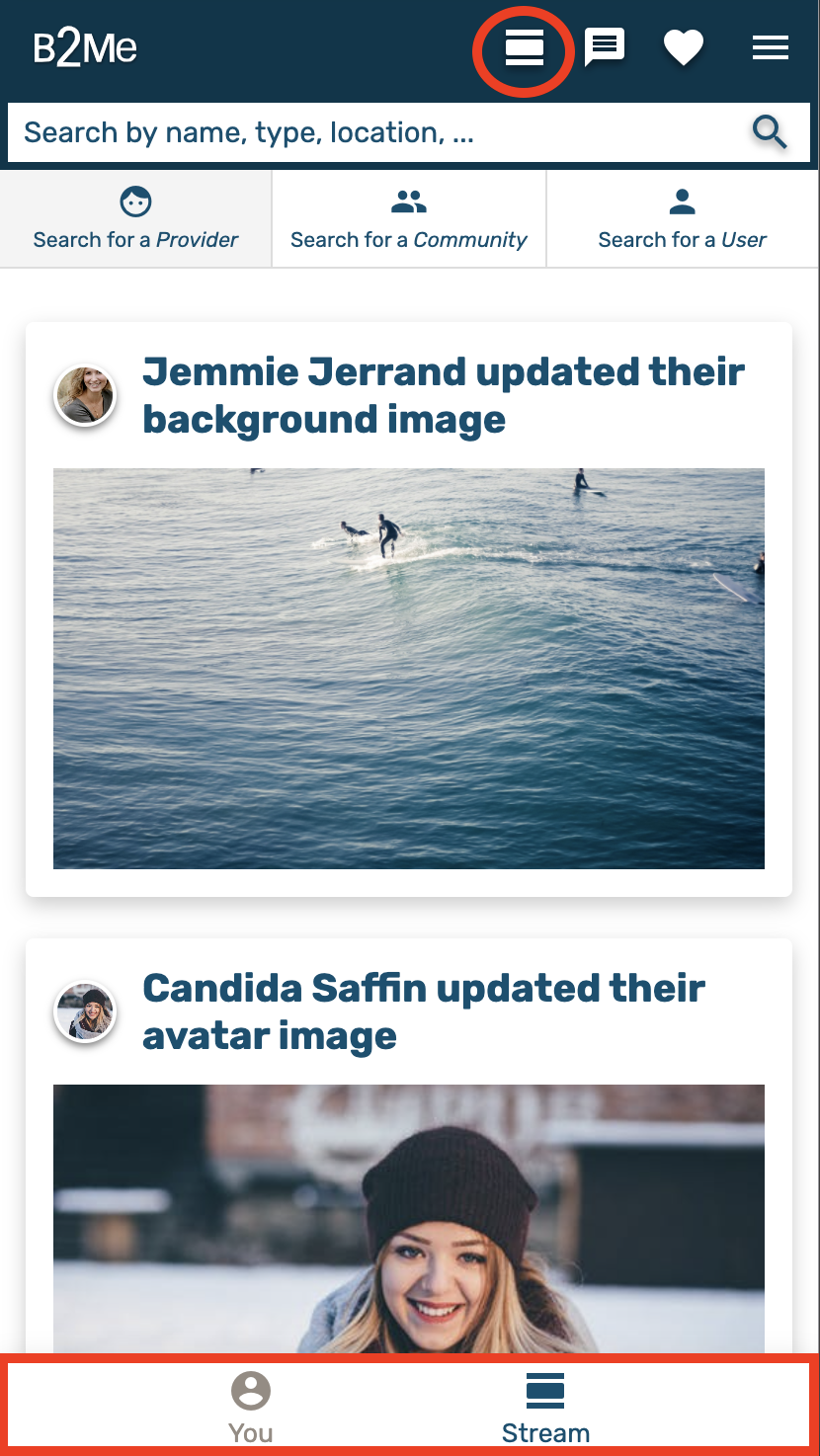
To access your activity stream, make sure you are logged into your account and select the stream icon (next to the messages icon) from the top right hand corner or the screen.
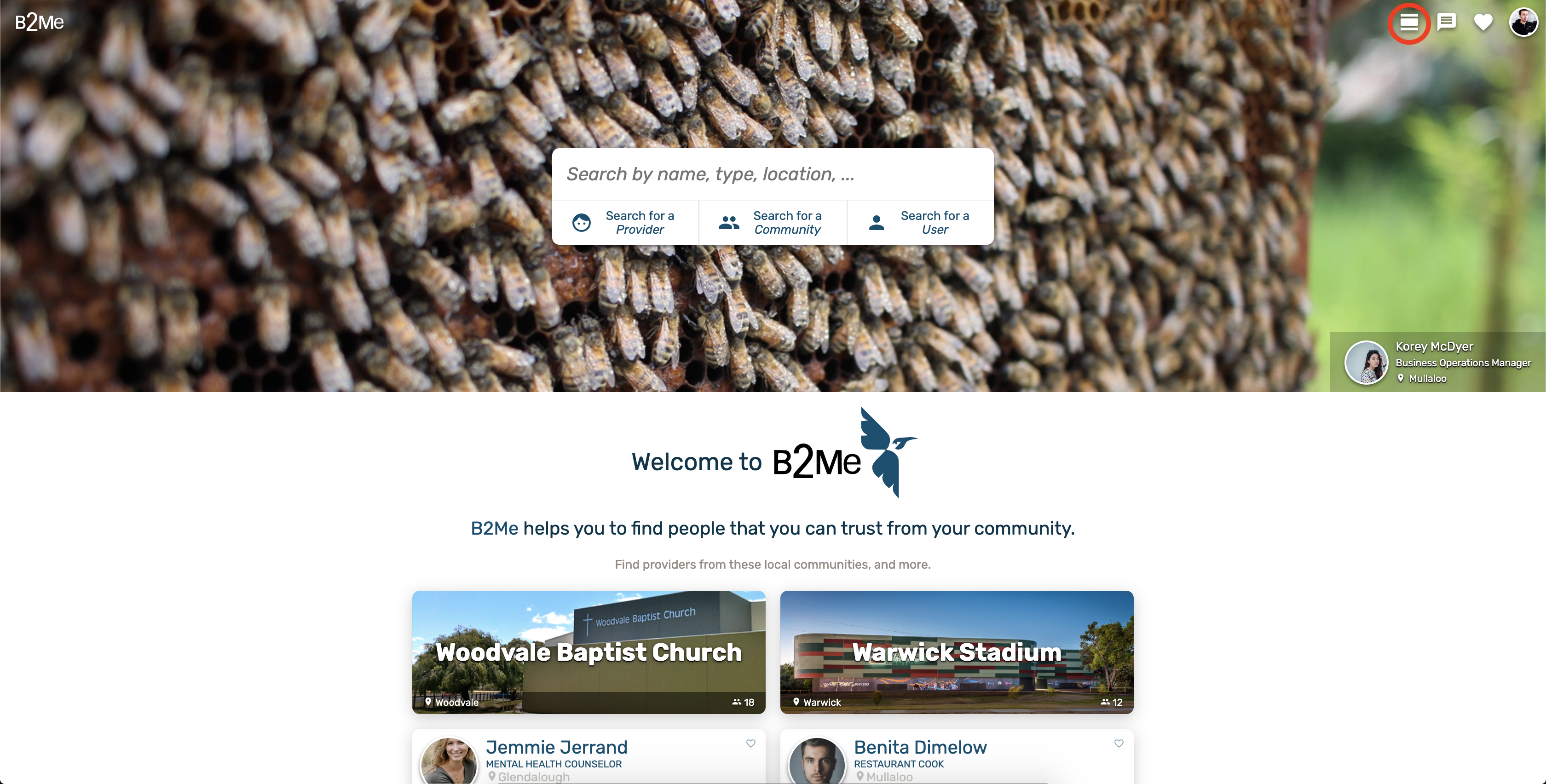
Activity Stream Overview
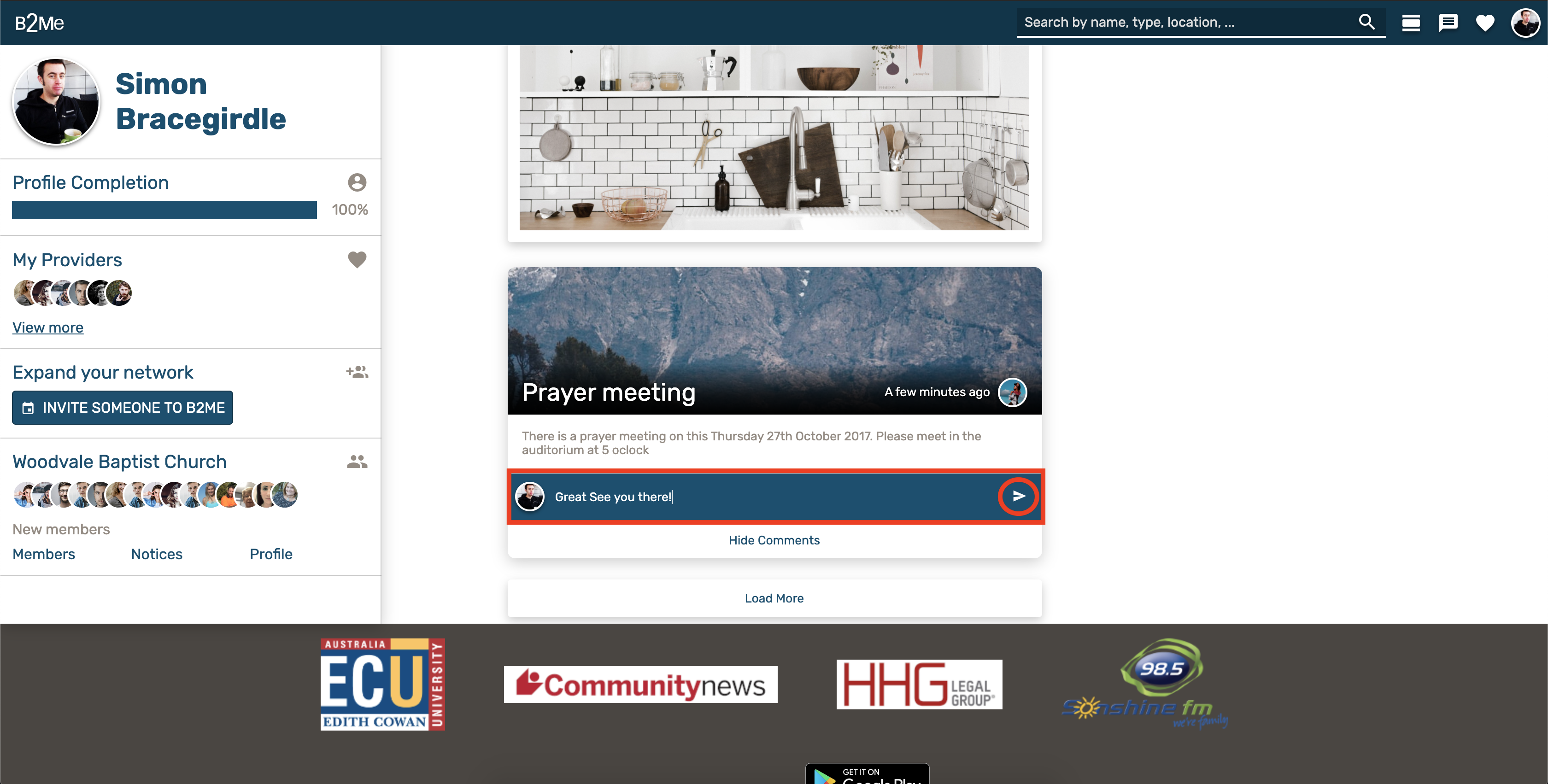
The activity stream can be split up into three different sections as shown below.
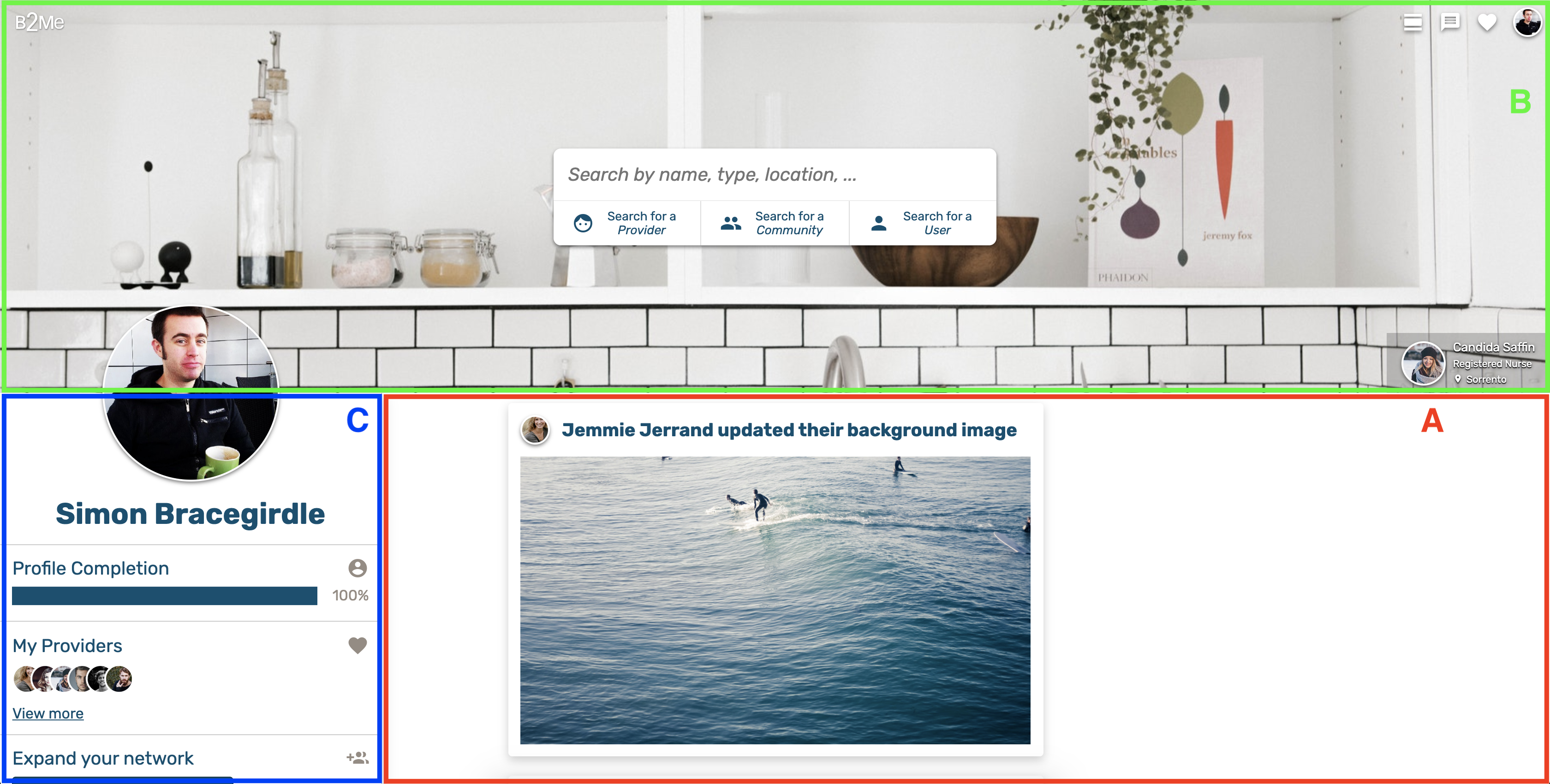
- A: This is the activity section. Updates from your communities and favourite providers will appear here with the most recent updates first.
- B: This header is identical to the header on the front page, it allows you to search for providers, communities or users on B2Me.
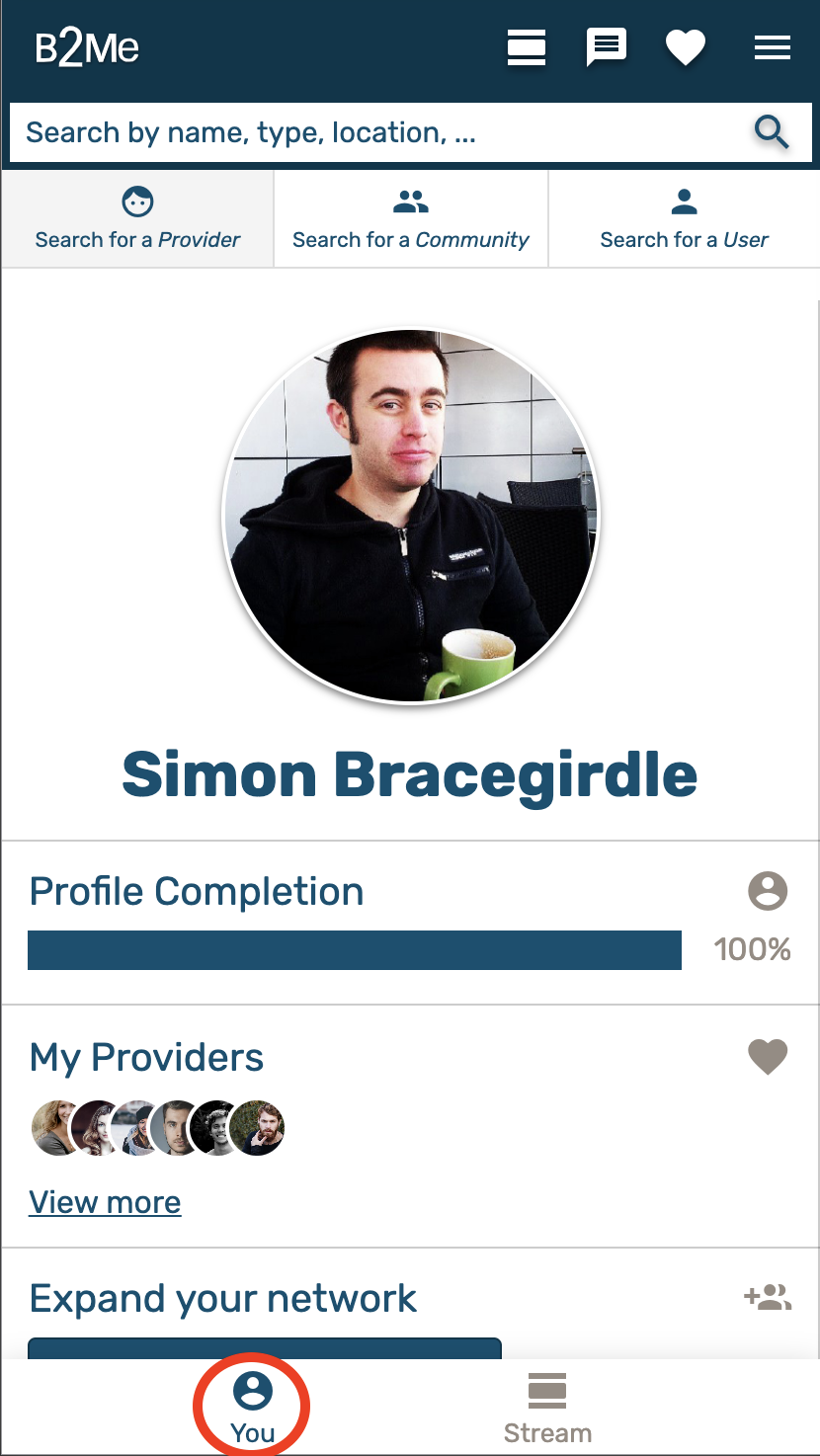
- C: This is the profile section, it provides an overview of your B2Me account. It also allows you to view your providers and communities at a glance.
Loading More Activities
Scrolling to the end of the stream will display a "Load More" button, clicking this will fetch the next activities in your stream.

If you've reached the end of the stream, the load more button will disappear and you should see the text "You're all caught up".
Suggested Community and Provider cards
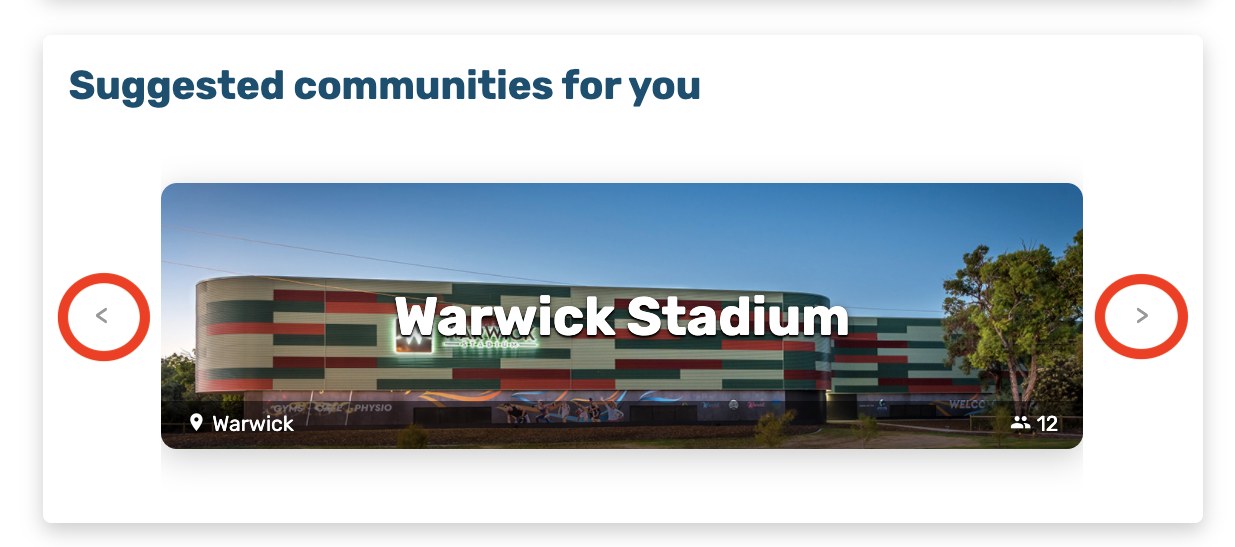
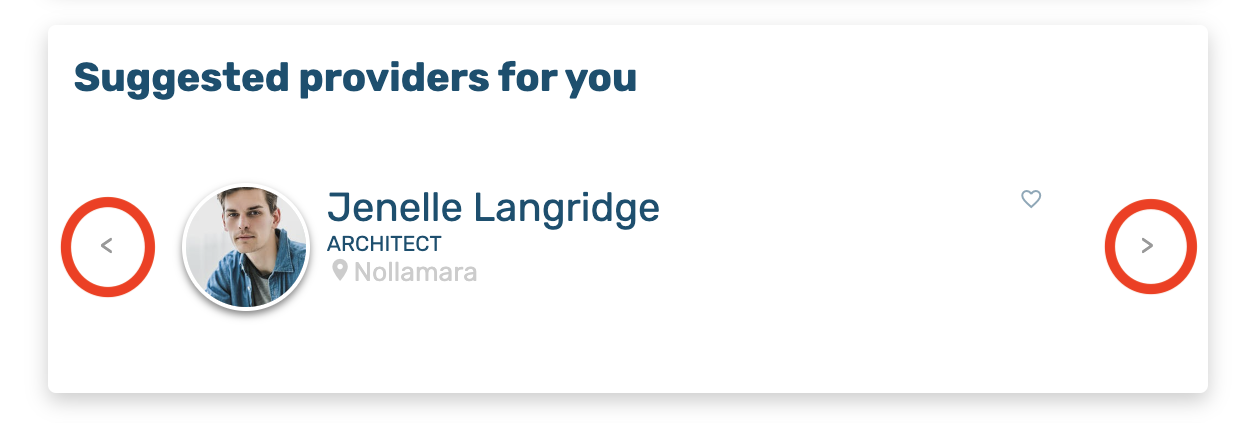
The activity stream also provides personalised community and provider suggestions right in your feed. Pressing either of the arrows will rotate through the suggestions.
Community Notices in the Activity Stream
Notices from your communities will appear directly in your activity stream. You'll be able to read the full notice and even add comments directly from the stream. To add a comment, click the button "Show Comments" to reveal the comments and the input bar.

Mobile Activity Stream
You can access the activity stream on the B2Me Android and iOS apps the same as the web, look for the stream icon in the top right hand corner next to the messages. On smaller displays the stream will have tabs at the bottom which enables you to navigate between the profile overview section and your stream.
Comments
0 comments
Article is closed for comments.